A GTM-first, event-driven implementation guide (with a reusable Custom Template and a universal event taxonomy).
Optimizely Data Platform (ODP) is not “just another web analytics UI”. It’s an event + customer-profile system: you collect behavioral events, link them to identities over time, and then use that data for segmentation (audiences) and activation.
If you try to implement ODP tracking in the same way people implement legacy “pageview-first” analytics, you’ll end up with a fragile mess: dozens of Custom HTML tags, inconsistent payload shapes, duplicate events, and no governance.
This guide shows a cleaner way:
- Install the ODP JavaScript tag via GTM (this gives you pageviews).
- Use the ODP Web SDK (
zaius.event(...)) for additional events. - Wrap the event sending logic into a GTM Custom Template so you don’t copy/paste vendor code everywhere.
- Build a universal event mapping (site-agnostic) that you can reuse across multiple websites.
- Add a few GTM variables to track scroll velocity and attention time.
Everything ODP-specific below is based on Optimizely’s official ODP documentation.
What ODP tracks out of the box (and what it doesn’t)
When you implement the ODP JavaScript tag, ODP tracks page view events only. That’s explicitly called out in Optimizely’s implementation guide.
If you want anything beyond page views (clicks, scroll, downloads, search, video engagement, attention time), you need to send those as events using custom JavaScript—either directly on the site or via GTM.
This single sentence defines your whole architecture: ODP base tag for baseline tracking, Web SDK events for everything else.
The ODP mental model (the part you must internalize)
1) ODP tracks visitors with first-party cookies
ODP tracks visitors using browser cookies. When a visitor lands on your website, ODP checks for an existing tracking cookie; if it doesn’t exist, ODP creates/associates one and records behavior moving forward.
Optimizely documents the first-party cookies used by the ODP JavaScript tag, including vuid (visitor UUID) and others.
2) Events are first-class objects
In the Web SDK, events describe actions customers perform. You record events from a page that has the ODP JavaScript snippet implemented by calling zaius.event().
Two key implementation rules:
- Web SDK events require an event type and an event action.
- The Web SDK
event()call includes the VUID (cookie ID) on requests automatically.
3) Identity resolution is the multiplier
ODP identity resolution connects events into a coherent customer journey across channels and devices. It uses identifiers with confidence levels—email and browser cookies are default identifiers.
When matching high-confidence identifiers are included with events, they’re connected; low-confidence identifiers behave differently and can move across profiles in shared-device scenarios.
In practice: you can track a lot anonymously, but ODP becomes dramatically more useful the moment you start linking events to known identifiers in a controlled way.
4) Audiences are where “analytics” becomes activation
ODP audiences let you create subsets of customers based on attributes and/or activities. ODP supports standard audiences (historical) and real-time audiences (built using GraphQL-based logic).
Real-time segments (audiences) are built from logical trees of conditions and can model sequences—behavior patterns over time.
Your event taxonomy is not just for reporting—it directly affects how cleanly you can build audiences later.
Step 1 — Install the ODP JavaScript tag via GTM (baseline)
Optimizely documents the GTM installation flow clearly:
- Copy the ODP JavaScript tag from Account Settings → Integrations → JavaScript Tag.
- In GTM, create a Custom HTML tag and paste the snippet.
- Fire on All Pages to capture page views everywhere. For SPA – fire also on history change and I recommend make pageview event standalone from main script.
Tag sequencing (non-negotiable)
Optimizely explicitly recommends ensuring Tag Sequencing makes any other custom tags fire after the ODP JavaScript tag.
If you ignore sequencing, you’ll see race conditions where your custom event tags fire before zaius is available.
Tracker IDs and environments
ODP uses a Tracker ID unique per account/environment, and Optimizely notes you can have separate Tracker IDs for test vs production.
Step 2 — Verify the base tag is installed correctly
Optimizely provides a verification checklist:
- View page source and search for your Tracker ID.
- In DevTools → Network, refresh the page and look for
zaius-min.jswith status 200 or 304.
This is your “ODP is alive” baseline.
Step 3 — The universal event taxonomy
You asked for only universal events that can work across basically any website. That means: no site-specific form types, no author clicks, no chatbots, no floating banners.
Here’s a universal set that scales:
- click (generic click tracking)
- scroll (scroll depth + scroll velocity)
- file_download (downloads)
- search (if the site has search)
- video_interaction (if the site has video)
- attention_window (active attention heartbeat)
And: pageviews are covered by the base ODP JS tag (out-of-the-box it tracks page view events only).
Universal mapping table
Below is a tracking-plan style table. This is what you should treat as your “single source of truth”.
| Event name | Event action | Event params | Params value |
|---|---|---|---|
| Main script | – | – | ODP JavaScript tag (Custom HTML, All Pages) |
| click | click | click_text | {{Click Text}} |
| click_url | {{Click URL}} | ||
| click_id | {{Click ID}} | ||
| click_classes | {{Click Classes}} | ||
| page_url | {{Page URL}} | ||
| scroll | interaction | percent | {{Scroll Depth Threshold}} |
| velocity | {{CJSV – Scroll Speed}} | ||
| page_url | {{Page URL}} | ||
| file_download | download | file_url | {{Click URL}} |
| page_url | {{Page URL}} | ||
| search | submit | search_term | {{Search Term}} |
| results | results_count | {{Results Count}} | |
| click | click_text | {{Click Text}} | |
| click_url | {{Click URL}} | ||
| page_url | {{Page URL}} | ||
| video_interaction | {{Video Status}} | video_title | {{Video Title}} |
| video_percent | {{Video Percent}} | ||
| file_url | {{Video URL}} | ||
| page_url | {{Page URL}} | ||
| attention_window | engagement | seconds_in_view | {{Active Seconds}} |
| visibility_status | {{Visibility Status}} | ||
| page_url | {{Page URL}} |
A few notes:
- ODP Web SDK custom events follow the format
zaius.event("your_event_type_here", { action: "...", ...fields }). - If you add fields that don’t exist in ODP yet, you must create custom fields (Optimizely explicitly calls this out for customer data; the same governance principle applies to event fields too).
Step 4 — The only Web SDK call pattern you really need
ODP Web SDK events are sent using:
zaius.event("{event type}", {
  action: "{event action}",
  // custom fields...
});
ODP’s docs confirm:
- You record events by calling
zaius.event()on a page where the ODP JavaScript snippet exists. - The Web SDK includes the VUID (cookie ID) automatically.
- Events require
event typeandevent action.
So in GTM terms: your job is to make sure event type + action + payload fields are consistently defined and fired in the right moments.
Step 5 — Why a GTM Custom Template (instead of copy/paste tags)
If you implement ODP events as raw Custom HTML tags, you’ll quickly accumulate:
- inconsistent payload keys
- missing
action - silent failures when
zaiusisn’t ready - no shared debug mode
- no reusable “event mapping UI”
A Custom Template gives you:
- a single implementation surface
- consistent payload shape
- safer window access (via Template APIs)
- team-friendly UI (fields + table)
- unit tests inside the Template editor
- versioning via GitHub releases
This is the approach you already packaged as “Optimizely ODP – Event Mapping for GTM” (v1.0.0).
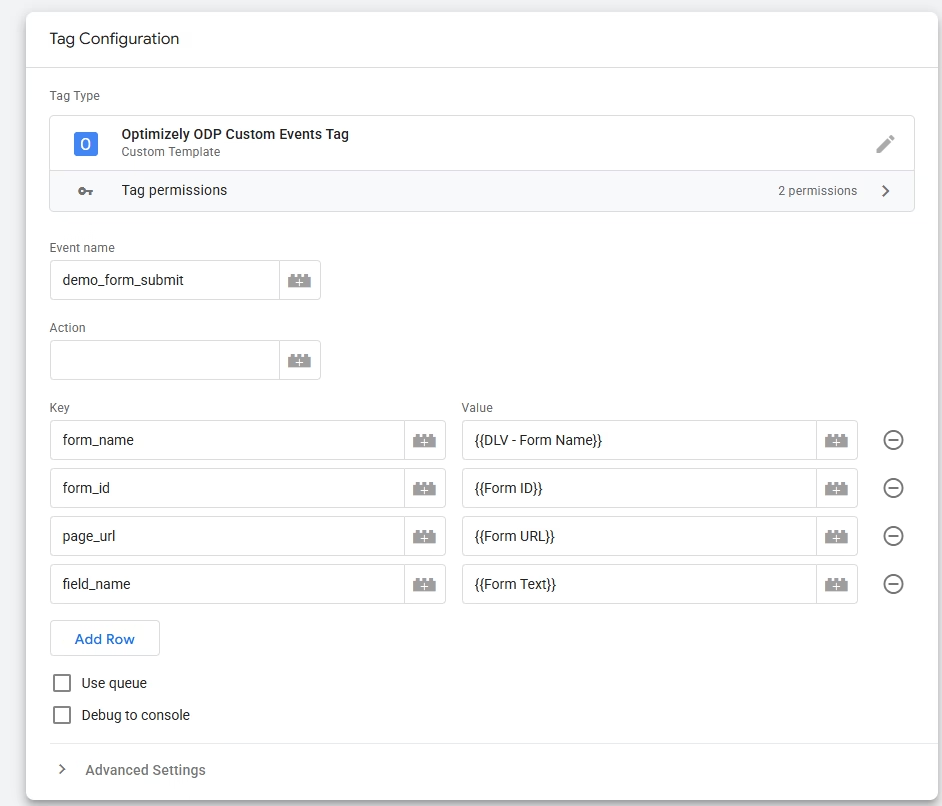
Step 6 — The GTM ODP Event Template (how it works)
Your template is intentionally minimal:
- Read
eventType+ optionalaction - Convert a simple table of parameters into an object
- Ensure
actionis included if provided - Try to send via
zaius.event(type, params) - Fallback to
zaius('event', ...)ifzaiusis callable - Optional queue stub if
zaiusisn’t present yet
The core “ODP part” of this is still just the official Web SDK event call pattern.
Why the queue stub exists
Optimizely’s GTM guidance explicitly tells you to make other tags fire after the ODP tag via sequencing.
In real containers, sequencing can still break (consent gating, async loading, SPA route changes). A queue stub is cheap insurance against “ODP not ready yet”.
Required template permissions
To work reliably, your template needs:
- Read from window:
zaius - Write to window:
zaius
Step 7 — Universal GTM triggers + variables for each event
Below are implementation recipes you can copy across sites.
A) click
Trigger:
- Click – All Elements (or Just Links if you only want link clicks)
Template configuration:
- eventType:
click - action:
click - parameters:
click_text={{Click Text}}click_url={{Click URL}}click_id={{Click ID}}click_classes={{Click Classes}}page_url={{Page URL}}
Why this is universal: every site has clickable UI. You can later filter on click_url, classes, ids, etc.
B) scroll (depth + velocity)
Trigger:
- Scroll Depth (e.g., 25/50/75/90).
This is GTM-native and works across sites.
Variables:
- Built-in:
{{Scroll Depth Threshold}} - Custom:
{{CJSV - Scroll Speed}}(px/sec) — see code below.
Template configuration:
- eventType:
scroll - action:
interaction - parameters:
percent={{Scroll Depth Threshold}}velocity={{CJSV - Scroll Speed}}page_url={{Page URL}}
{{CJSV - Scroll Speed}} (Custom JavaScript Variable)
Create GTM Variable → Custom JavaScript:
function() {
  var w = window;
  var state = w.__gtmScrollSpeedState;

  if (!state) {
    state = {
      lastY: (w.pageYOffset || (document.documentElement && document.documentElement.scrollTop) || 0),
      lastT: (new Date()).getTime(),
      speed: 0,
      initialized: false,
      handlerAttached: false
    };
    w.__gtmScrollSpeedState = state;
  }

  if (!state.handlerAttached) {
    state.handlerAttached = true;

    w.addEventListener('scroll', function() {
      var now = (new Date()).getTime();
      var y = (w.pageYOffset || (document.documentElement && document.documentElement.scrollTop) || 0);

      if (!state.initialized) {
        state.lastY = y;
        state.lastT = now;
        state.initialized = true;
        state.speed = 0;
        return;
      }

      var dy = Math.abs(y - state.lastY);
      var dt = now - state.lastT;
      if (dt <= 0) return;

      var instant = (dy * 1000) / dt; // px/sec
      state.speed = (state.speed * 0.7) + (instant * 0.3);

      state.lastY = y;
      state.lastT = now;
    }, { passive: true });
  }

  return Math.round(state.speed || 0);
}
This gives you a stable numeric “scroll velocity” you can segment on later.
C) file_download
Trigger:
- Click – Just Links
- Filter by file extensions (pdf, docx, xlsx, zip, etc.) or URL contains
/download/
Template configuration:
- eventType:
file_download - action:
download - parameters:
file_url={{Click URL}}page_url={{Page URL}}
D) search (optional module, still universal as a pattern)
Search implementations vary wildly, so the universal approach is:
- standardize the ODP payload schema
- let each site decide how to populate it (native form submit trigger vs dataLayer push)
Recommended actions:
submit(a search executed)results(results returned / count known)click(result clicked)
Payload schema:
search_termresults_countclick_url,click_textfor result clickspage_url
This matches ODP’s custom event capability without requiring a specific UI implementation.
E) video_interaction (optional module)
Like search, video differs (YouTube, Vimeo, custom players). The universal pattern is:
- eventType:
video_interaction - action: one of
play,pause,complete,progress(your own controlled vocabulary) - params:
video_title,video_percent,file_url,page_url
ODP doesn’t force you into a specific video schema—custom events exist specifically to model site/customer-experience-specific events and fields.
F) attention_window (active attention heartbeat)
This is your “engagement heartbeat”: send a small event every N seconds describing how long the user has been actively engaged.
Trigger:
- Timer trigger every 10 seconds (or 30 if you want fewer events)
Template configuration:
- eventType:
attention_window - action:
engagement - parameters:
seconds_in_view={{Active Seconds}}visibility_status={{Visibility Status}}page_url={{Page URL}}
{{Visibility Status}}
GTM Variable → Custom JavaScript:
function() {
  var d = document;
  var s = d.visibilityState;
  if (!s) return (d.hidden === true) ? 'hidden' : 'visible';
  return s; // typically 'visible' or 'hidden'
}
{{Active Seconds}}
GTM Variable → Custom JavaScript:
function() {
  var w = window;
  var d = document;

  var state = w.__gtmAttentionState;
  var now = (new Date()).getTime();
  var IDLE_TIMEOUT_MS = 15000; // idle after 15s without activity

  if (!state) {
    state = {
      activeMs: 0,
      lastTick: now,
      lastActivity: now,
      hasFocus: true,
      listenersAttached: false
    };
    w.__gtmAttentionState = state;
  }

  function visibleNow() {
    if (d.visibilityState) return d.visibilityState === 'visible';
    return d.hidden !== true;
  }

  function isActive() {
    var notIdle = (now - state.lastActivity) <= IDLE_TIMEOUT_MS;
    return visibleNow() && state.hasFocus === true && notIdle;
  }

  if (!state.listenersAttached) {
    state.listenersAttached = true;

    var activity = function() { state.lastActivity = (new Date()).getTime(); };

    w.addEventListener('mousemove', activity, { passive: true });
    w.addEventListener('scroll', activity, { passive: true });
    w.addEventListener('keydown', activity);
    w.addEventListener('click', activity);
    w.addEventListener('touchstart', activity, { passive: true });

    w.addEventListener('focus', function() { state.hasFocus = true; activity(); });
    w.addEventListener('blur', function() { state.hasFocus = false; });

    d.addEventListener('visibilitychange', function() { activity(); });
  }

  var dt = now - state.lastTick;
  if (dt < 0) dt = 0;

  if (isActive()) state.activeMs += dt;
  state.lastTick = now;

  return Math.floor(state.activeMs / 1000);
}
This is not “time on page”. It’s “active attention time” – a much better signal for engagement modeling.
Step 8 — Turning anonymous traffic into real customer profiles
ODP Web SDK gives you two main primitives:
- Events:
zaius.event(...)(behavior) - Customer updates:
zaius.customer(...)(identity + attributes)
Optimizely explicitly explains that customer() is used to send a new customer object or update fields, and that the call includes the VUID automatically.
They also describe the customer() call structure: the first object is identifiers; the second object is attributes.
Example (straight from the model, adapted to generic “known identifier captured” moment):
zaius.customer(
  { email: "user@example.com" },   // identifiers
  { first_name: "John" }           // attributes
);
If you supply a customer ID, Optimizely notes ODP associates it with future events in the same web session.
Don’t “invent” identifiers
Identity resolution uses default identifiers like email and browser cookies and relies on confidence levels to decide how profiles/events merge.
Treat your identity strategy as a design decision, not a tagging afterthought.
Step 9 — Consent is not optional (and it has a specific meaning in ODP)
Optimizely defines consent in ODP as the customer’s ability to receive marketing communications. Opt-out customers cannot receive marketing messages; transactional messages are exempt.
They also state that marketing consent is an attribute of each identifier (e.g., each email address), not the entire customer profile.
For a GTM implementation, the practical outcome is:
- Decide what “allowed to track” means for your org/legal requirements.
- Gate ODP tags accordingly (ODP base tag + event tags).
- Treat marketing consent updates as a separate, governed workflow (ODP has documented consent concepts and methods).
Step 10 — Shared devices and logout: reset the browser identifier
Optimizely provides zaius.anonymize() to reset the cookie identifier associated with the browser.
They explicitly recommend using it when a user logs out or on shared devices between identifier submissions.
So if your site has authentication, this is a must-have:
zaius.anonymize();
One important warning about “purchase” events (if you’re ecommerce)
Optimizely explicitly warns they do not recommend or formally support order events in the Web SDK, to avoid ad blockers blocking critical purchase events, and they recommend sending purchase events via REST API or CSV instead.
Even if your main focus is web analytics: if revenue events matter, don’t let them depend on browser-side event delivery.
How this setup becomes “web analytics” inside ODP
Once you have:
- baseline pageviews from the base tag
- consistent custom events from
zaius.event(...) - identity linking via
zaius.customer(...)
…you can build audiences:
- Standard audiences based on historical activity and attributes
- Real-time audiences/segments that update continuously
And if you want to go deeper into “behavior as logic”, real-time segments are explicitly described as condition trees and sequences that detect patterns over time.
This is the point where ODP stops being “tracking” and becomes a programmable, segmentation-grade dataset.
Implementation checklist (take this)
- ✅ Install ODP JavaScript tag on all pages via GTM
- ✅ Enforce tag sequencing: custom event tags fire after ODP tag
- ✅ Verify
zaius-min.jsloads (200/304) - ✅ Implement a universal event taxonomy (click/scroll/download/search/video/attention)
- ✅ Use a GTM Custom Template to standardize event sending
- ✅ Add helper variables: scroll speed, active seconds, visibility status
- ✅ Implement identity linking via
customer()when you capture identifiers - ✅ Handle logout/shared devices with
anonymize() - ✅ Define how you handle marketing consent in ODP terms
- ✅ Keep purchase events off the Web SDK if they’re business-critical
Leave a Reply